
Compact info on item number
When touching an item number on the drawing (hotspot) that is selected or not selected, you immediately receive compact information about the part/assembly.
Flyer with compact information:
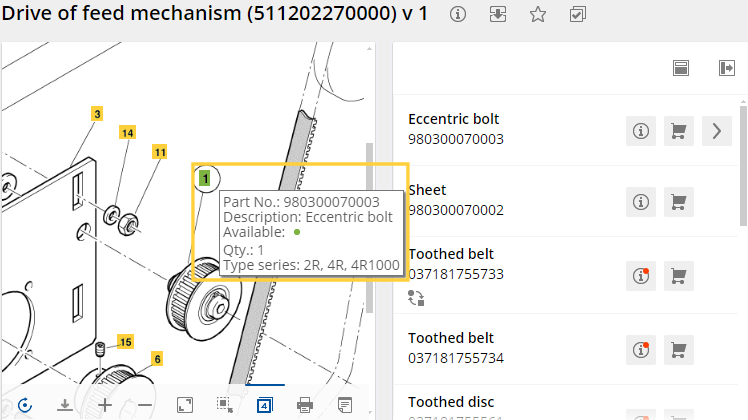
Flyer
Hotspot is linked to several parts list entries
- When hover on the hotspot:
The tooltip informs you that there are several parts list entries.
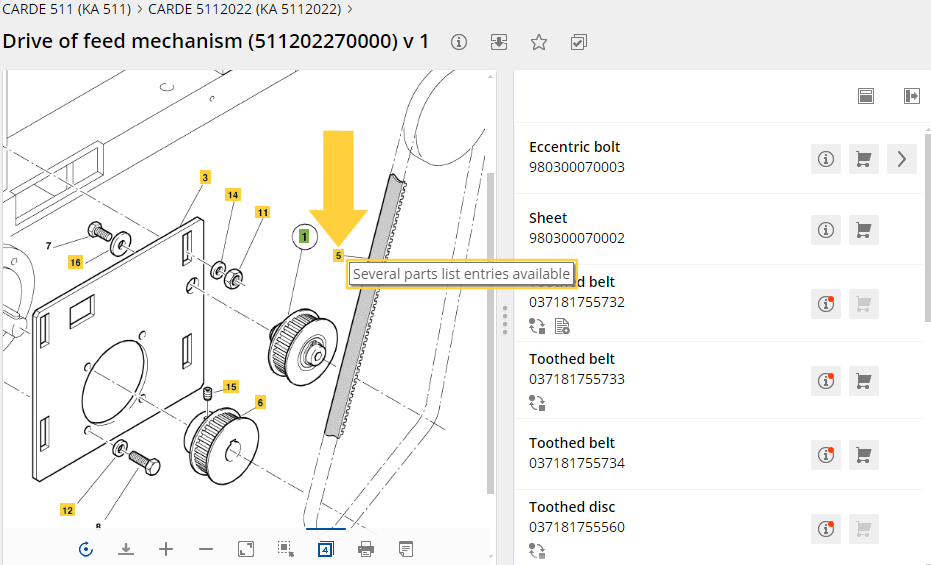
Hover on hotspot
- When clicking on the hotspot:
All parts list entries with the same item number are selected.
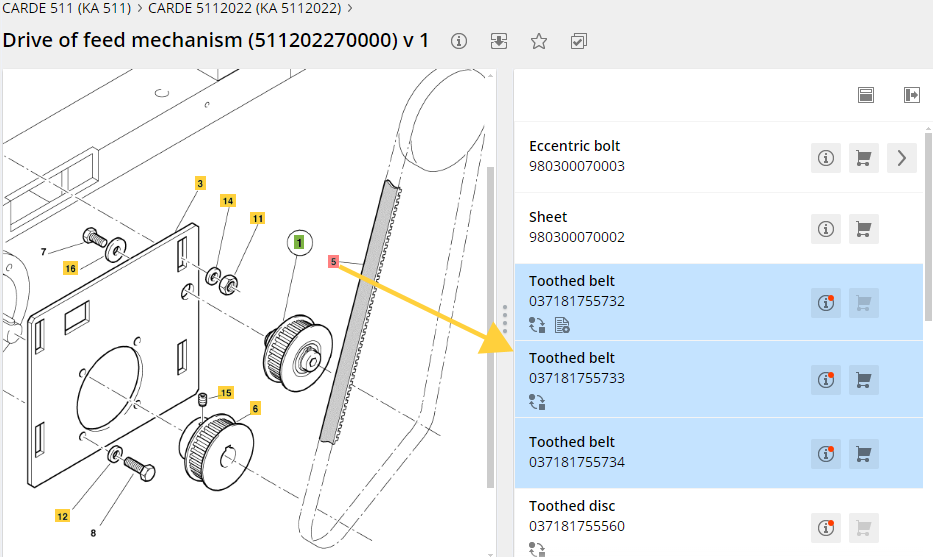
Click on hotspot
- Double-click on the hotspot:
A dialog is displayed in which all parts list entries with the same item number are listed.
Here you can select the appropriate article, call up the additional information and add the article to the shopping cart via the additional information.
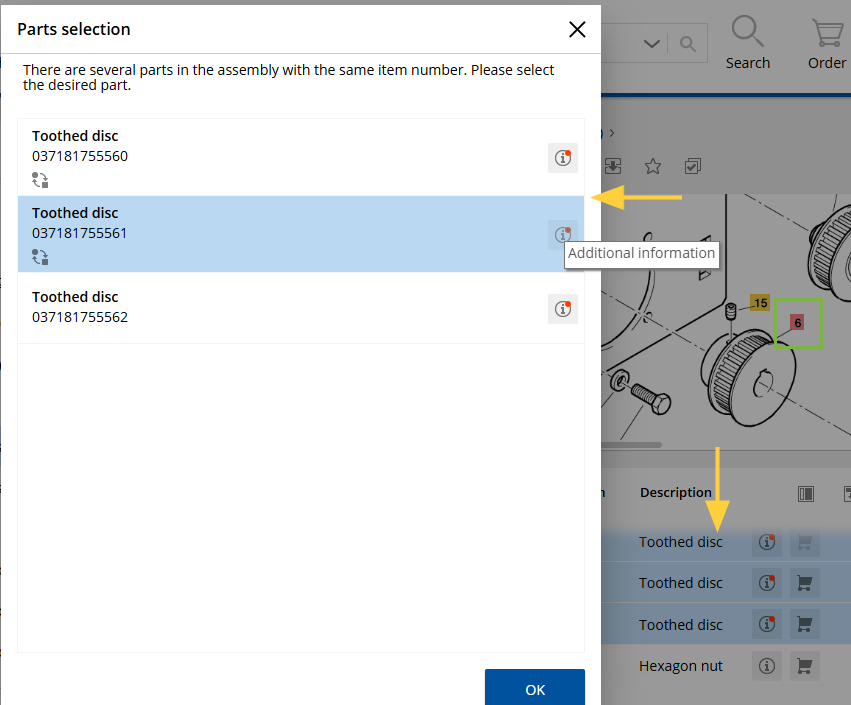
Double-click on hotspot
Hotspots with the same item number on the drawing
Several hotspots with the same item number can be displayed on a drawing.
- When you click on such a hotspot, the drawing toolbar shows the number of identical item numbers in the drawing.
- You can navigate between these item numbers using the arrow keys.
The currently selected hotspot can be defined in a specific color and/or shape.
- Hotspots with the same item number can also be clicked directly on the drawing.
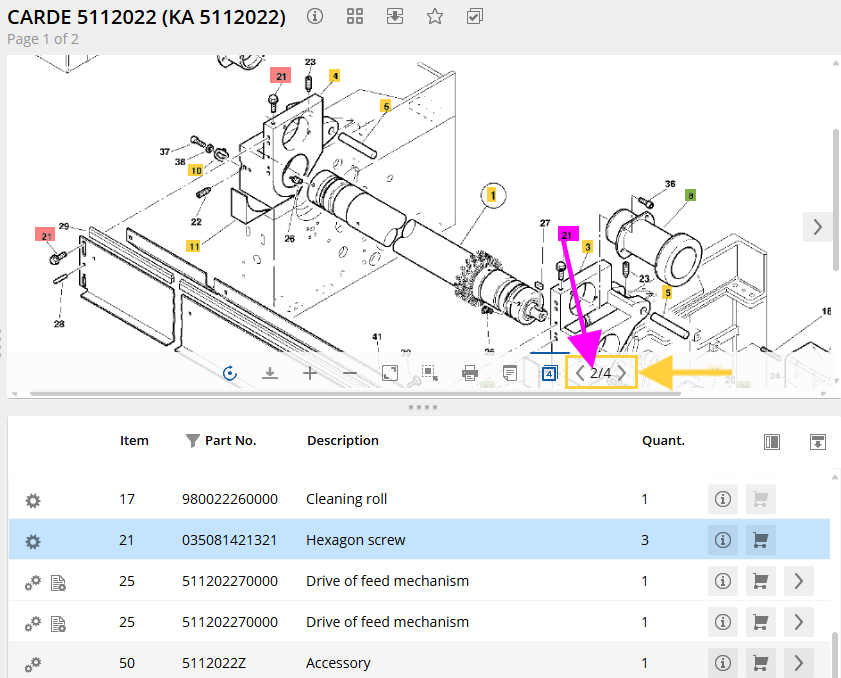
Hotspots with the same item number in the drawing